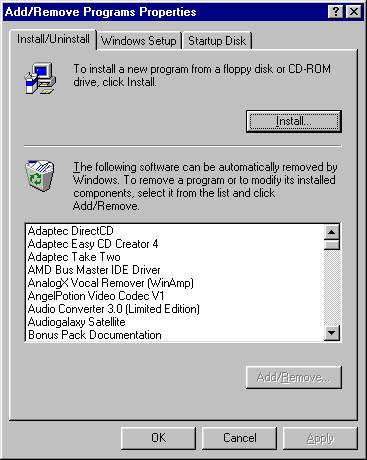
Now, as I've said previously, Windows isn't the most stable of beasts. In fact, it can be downright dangerous to use even the magnifier that comes with Windows. I used it and my screen lost its colour scheme for weeks...and wouldn't load Active Desktop. Be warned!
So, let's move on. I use Windows 98 SE....let's have a look at how, when all else fails, I can restore Windows.
To start with, I'll need a startup disk. The startup disk is the first thing that Computer retailers normally tell you to do when you first get the system up and running.
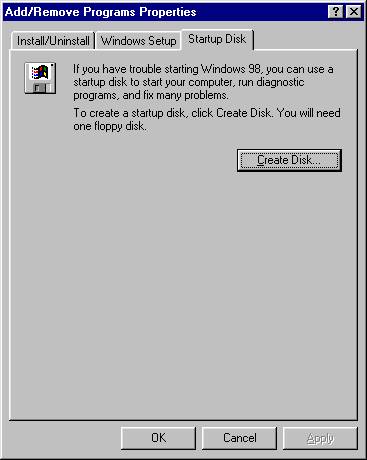
Self explanatory really, insert a floppy disk and click the Create disk button. See now Windows Screengrab No3
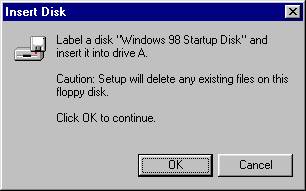
Do as you're told and we're away! Just in case you didn't know, they don't mean renaming the disk, just simply sticking a new label on it.
So now you should have a functioning Startup disk.... you'd better check it first!!
It's a bit late to check it after you've formatted the drive or worse, Windows has totally failed on you. To check the disk, simply reboot the computer with the floppy inserted.
This should result in the startup disk giving you an options screen. The option you should choose is the one that offers to start with CD-Rom support, in other words it mounts the CD. After a couple of minutes and much loading of files in which lots of text shuffles down the screen, it mounts a Ram drive (2mb) and enables the CD. You should now have a dos screen with the cursor flashing at A: Above that should be the information about your CD-Rom drive.Please note that your normal drive letter associated with the CD might not be the one that the startup disk uses. Don't worry about this. Check that the CD works by inserting a CD and typing the drive letter that the disk has said is now the CD-Rom eg E: Assuming that the disk said E: was the CD, the prompt should change to E: and when you type dir or dir E:, you should get a listing of the CD contents.
You will need your Windows CD!! This is one of the most important parts. A bit pointless trying to re-install something you don't have. You will also need the serial number for the disk. When you have this (and all the other associated disks you need like the sound card disk, graphics card disk, printer, scanner, modem etc) we can go the next stage.
Go to a DOS prompt again, or re-boot with the startup disk. Either way you should now have something like this. See Windows Screengrab No4.
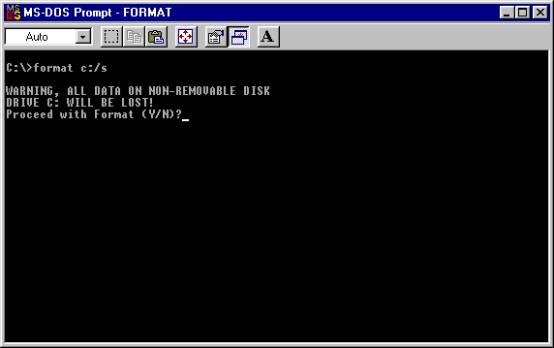
A quick word about DOS commands... format is the command and /s is the switch that tells format to install system files. C: is, of course, the device. In essence we are telling M$-DOS to format the harddrive and install system files. This is assuming you only have one partition!! If you have more than one partition then you have to remove the partitions before you format it. You do this using FDisk which is yet another DOS command. but I won't go into this part this time.
Right, where was I ? Oh yes, we have typed in the command and DOS has asked if we are sure. Type Y and wave goodbye to your harddrive!!!
If you didn't format from the startup disk, we now need to use it. Reboot with the startup disk and select the option for CD-Rom support. You now insert your Windows disk into the CD. Type the letter for your CD-Rom and then type setup.
Right, I'm now in uncharted waters here. I've never had to re-install Windows this way. I've read all the articles on how to do it!! Once you've started the install, Windows relies on you telling it yes at various points. According to the articles I read, this should start with the Windows asking if it can check your system. Type yes and it performs a scandisk to check the drive. Now this should be automatic to most users.. Who tells Windows No ?? Do it and it will disappear. Anyway, once it has performed this task, Windows will install asking for your serial number to complete the installation. Now no sending me mails if this didn't work!!..and if it didn't work, where are you sending me mails from??
It will also ask for things like what type of install to do and where to put it. As per usual, its easier to click for the default options unless you are trying something different. The type of install will depend on what you want.. I would recommend "typical". Anyway, once you have finished re-installing all the other stuff you had, you can always go back and install any part of windows that you didn't get by using the add/remove programs in control panel again and clicking Windows setup.
You'll notice I have only outlined the basics of re-installing. Systems vary, more than one partition, different cards installed etc. etc., so an article telling the way of doing this for all options would be far too long. This will work if you have a typical machine from one of the main Computer sellers in the market in Britain. These usually arrive with a set of disks for your scanner, printer and if you're lucky, the Windows disk. They usually only have the one partition.
So...feeling lucky???
